

Frigya features
Frigya splits vocabulary learning into two stages and takes the scheduling of reviews off your plate. Below is every feature the app really has, and how it works.
Stage 1
Discover: meet new words
Discover is where you meet new words every day. Words come from the language and levels you picked, and the length of a session follows your daily goal.
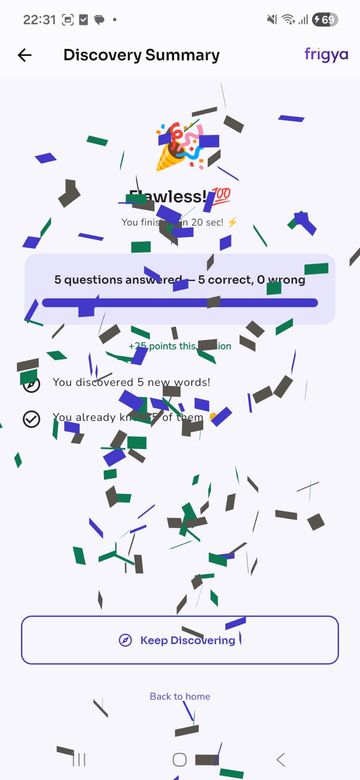
A word you get right on the first try is marked as already known, so you do not keep studying what you know. When the session ends you see a summary: how many words you discovered, how many you already knew and the points you earned.
Stage 2
Learn: lock words in with spaced repetition
Learn is where you review the words you discovered. It unlocks after the first few words; until then the home screen tells you how many more to discover.
Reviews are spaced: words are asked spread over time, not back to back. You can continue until the pool is finished or you stop, and you can review as much as you like.
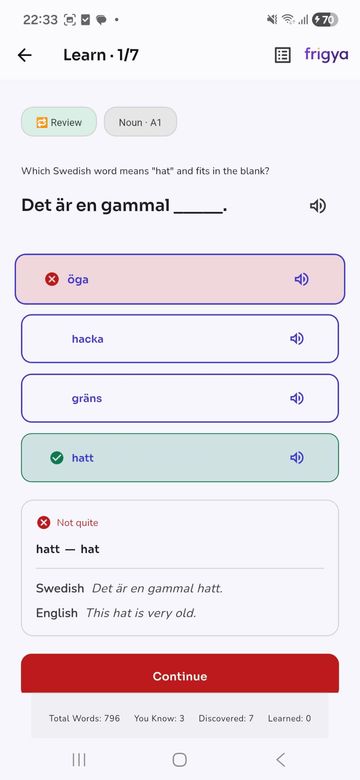
- After each answer you see the meaning and an example sentence in both languages.
- The question card shows the word type and level (for example, noun, A1).
- Words you have seen before come with a Review label.
Spaced repetition
Spaced repetition means showing you something again just before you would forget it. Instead of repeating a word twenty times in one evening, you spread the repetitions out, and every successful recall makes the memory a little more durable.
Frigya applies this approach in the Learn stage. For the background, see our articles What is spaced repetition? A plain-English guide for language learners and The forgetting curve and what it means for learning vocabulary.
Question format: multiple choice, in context
Questions are multiple choice. The wrong options are drawn at random from a large pool at the same level, so you cannot memorize the options; you have to know the word.
Many questions ask for a word inside a sentence ("Which word fits the blank?"), so you see the word in context and not just as a translation.
Daily goal
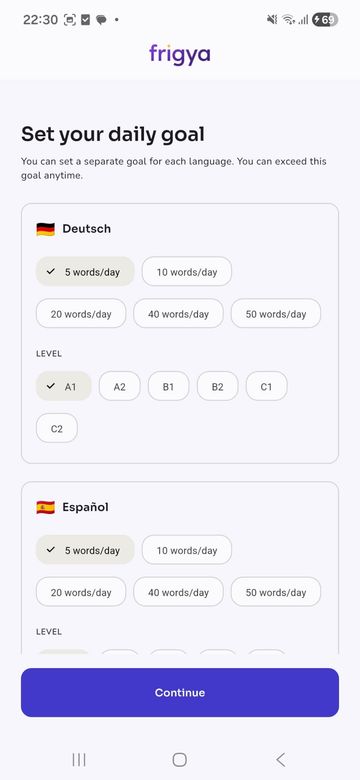
You choose how many new words to discover each day: 5, 10, 20, 40 or 50. The goal is set per language, you can change it whenever you want, and you can exceed it.
For many people, starting small and raising the goal once the habit is solid works better. For a realistic plan, read How many new words a day should you learn? A realistic plan.
A1–C2 levels
Words are grouped by CEFR level: A1, A2, B1, B2, C1 and C2. For each language you choose which levels to study; you can study A1 in one language and B2 in another.
We explain the level system on the CEFR Levels A1–C2 page and in What is CEFR? The language levels A1 to C2 explained.
More than one language
You can add one or several languages other than your own at the same time and switch between them from the language menu at the top of the home screen. Removing a language does not delete your progress; add it back and you continue where you left off.
See the full list on the Languages page.
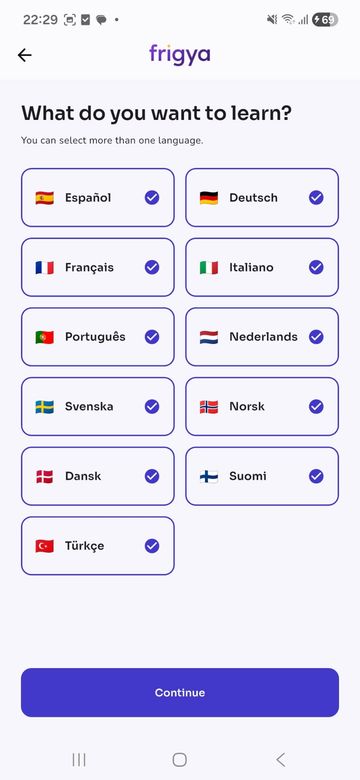
Progress, score and streak
The progress screen has three tabs: Discovered, Learned and Known. You see your score and how many words are due for review today. The home screen shows today's progress, your current streak and total study time.
The goal history screen shows your current streak, your longest streak, how many days in the last 30 you exceeded your goal, and a daily breakdown. To set a streak-friendly goal, see How many new words a day should you learn? A realistic plan.
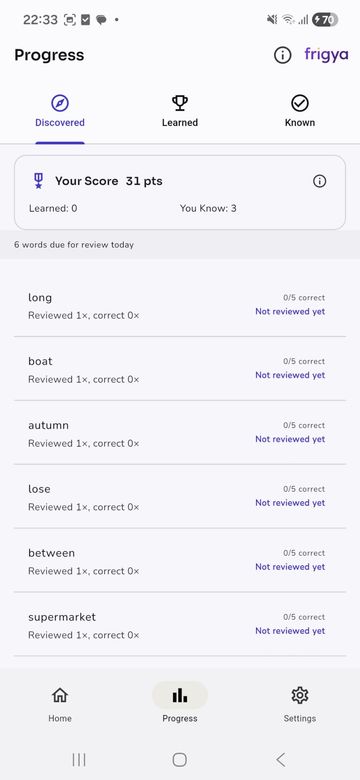
Audio
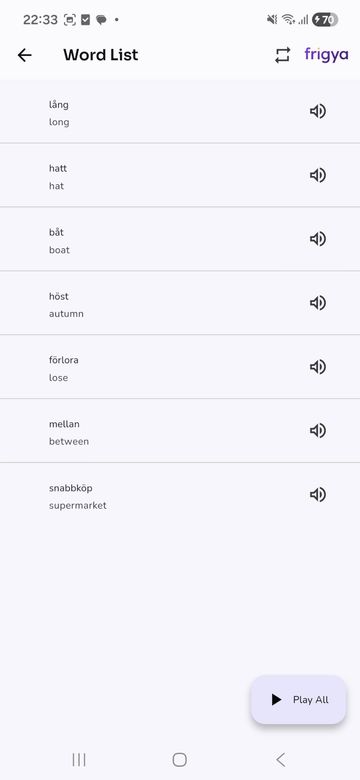
You can listen to words and example sentences. You can also turn on automatic audio for questions and choose whether answer options are read aloud. In the word list every word has an audio icon, and there is a Play All button.
Hearing a word, not just seeing it, helps you learn how it is pronounced.
Light, dark and system theme
Set the appearance to Light, Dark or System. With System selected, the app follows your phone's theme. The sections on the home screen (widgets) can be customized too.
Guest mode, accounts and keeping your progress
Frigya opens without an account, so you can start as a guest. The home screen reminds you that a guest account can lose progress and suggests creating an account.
If you want, sign in with Google on Android (with Apple on the iOS version) to keep your progress even if you change devices. You can delete your account from inside the app; the steps are on the Account & Data Deletion page.
Invite a friend
The app has an "Invite a friend" section with a personal invite code. According to the Google Play listing, both you and your friend earn a reward, and according to the Privacy Policy invite code information is used for the premium reward system. You will see the details in the app.
Screenshots are real captures of the app, shown with the English interface.
Try it all yourself
Try it without an account. If you like it, link your progress to one.
 iOS: Coming soon The App Store version is in preparation